Thursday, February 21, 2019

Wednesday, February 20, 2019
PayPal Beginner Video Tutorials – A Guide for PayPal Beginners
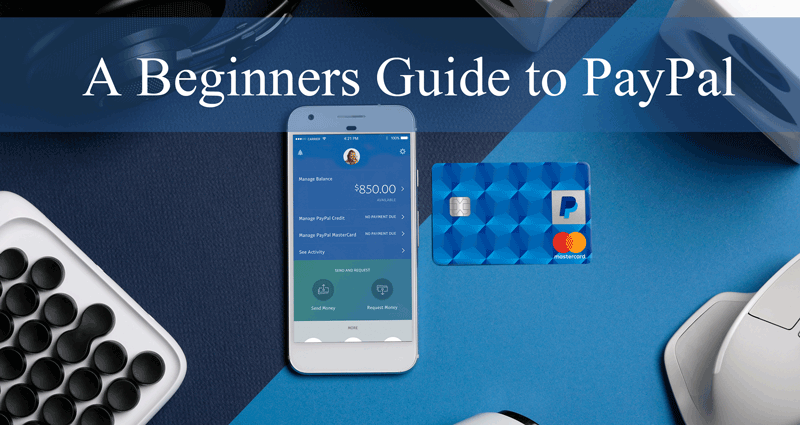
Wondering How to Get Started with PayPal? Go no Further.
Our PayPal Beginner Video Tutorials will Walk You Through Each Step of the Way.
PayPal, a secure online payment processing system, is not only a simple platform to use but is also internationally recognized with 300 + million users globally.
Whether you are starting a small business, love online shopping or intend on selling some goods on a marketplace, PayPal will allow you to send and accept funds with ease. Being the most recognized name in online payments, offering PayPal on your website will provide customers with the assurance they need to make a purchase.
After watching our selection of tutorials on PayPal, you should be able to complete the following:
- Create a Personal PayPal Account
- Send Money from Your PayPal Account to Family, Friends, Employees and Sellers
- Receive Money in Your PayPal Account
- Withdraw Funds from Your PayPal Account
- Update Your Linked Credit Card within PayPal
- Transfer Money from Your Bank Account to PayPal
- Delete or Close Your PayPal Account
- Realize Why there is a Pending Payment in Your PayPal Account
- Make a Mass Payment from your PayPal Account
- Enable PDT and IPN for eCommerce and Membership Solutions
We’ll start by creating a personal PayPal account but once you’ve got a feel for the platform, taking the leap from a personal account to a business or premier account is simple.
Why PayPal?
The benefits of having a PayPal account seem to always outweigh the negatives of having one. Whether you intend on using your account daily, or just as a once off to send some money to a niece or nephew for their birthday, sending and receiving money with PayPal is hassle free.
- Sending money with PayPal ensures you never reveal your bank details
- Allows surety that money will reach its’ desired location
- Money can be sent to over 100 different countries around the world
- Sending money directly from one PayPal account to another is instant
- Paying online is convenient
- Allows one to accept multiple currency with low conversion fees
- Low transaction Fees
Let’s Create a PayPal Account
You’ve agreed that PayPal is the right choice for you to accept and send money online. Now what?
We’ll start by creating our personal account. Once that’s done, keep following along with our beginners tutorials that’ll introduce you to further PayPal features.
If you are learning about PayPal with intentions to accept payments from customers on your website, our 10th and 11th video tutorials will help you enable PayPal IPN and PDT.
PayPal Beginner Video Tutorials
1. How to Create a Personal PayPal Account?
Watch the following short tutorial to help you set up your personal PayPal account.
2. How Can I Send Money from My PayPal Account?
Are you wanting to send money to your family, friends, employees or a seller? Watch the following tutorial to guide you as you send money from your PayPal account.
3. How Can I Receive Money in My PayPal Account?
Have you recently been sent money on PayPal? The following tutorial will show you where you can locate money in your PayPal account by transaction ID.
4. How Can I Withdraw Funds from My PayPal Account?
Do you need to withdraw money from PayPal into your bank account? Watch the following video to learn how.
5. How Can I Update My Linked PayPal Credit Card?
Have you been issued a new bank card? PayPal may have already notified you that you need to update your linked credit card. Watch the following tutorial to learn how you can easily update your linked PayPal credit card details.
6. How Can I Send Money from My Bank Account to PayPal?
Do you wish to have some PayPal funds to spend online? The following video demonstrates how money can be transferred from a bank account straight into a PayPal account.
7. How Can I Delete My PayPal Account?
Have you opened another PayPal account and wish to delete your old account? Watch the video below for instructions on how you can delete your PayPal account.
8. Why is There a Pending Payment in My PayPal Account?
Can you see a pending payment in your PayPal account? Find out what a pending payment is and when this payment will clear by watching the tutorial below.
9. How Can I Make a PayPal Mass Payment?
Do you have multiple employees that you wish to pay at once? Find out more about PayPal’s mass payment tool in the video below.
10. How Can I Enable PDT (Payment Data Transfer) in My PayPal Account?
Do you have a website where you need to enable PDT? See our demonstration below to find out how.
11. How Can I Enable IPN (Instant Payment Notification) in PayPal Account?
Are you using an eCommerce solution where PayPal IPN needs to be enabled? Watch out video below to find out how.
12. How Can I Re-Send a PayPal IPN Message?
The following video tutorial shows you how to resend the PayPal IPN message. This is useful if the original IPN message was missed (or blocked) for some reason and you need to resend it.
PayPal Beginner Video Tutorials – A Guide for PayPal Beginners shared from Tipsandtricks-HQ

PayPal Beginner Video Tutorials – A Guide for PayPal Beginners syndicated from Aileen Batts Blog
from Leslies Tumblr http://lesliesrubin.tumblr.com/post/182933100197
Monday, February 11, 2019
Protected: 36 Books
This content is password protected. To view it please enter your password below:
Password:
Protected: 36 Books shared from AidanBooth.com
Protected: 36 Books syndicated from Aileen Batts Blog
from Leslies Tumblr http://lesliesrubin.tumblr.com/post/182736170977
Wednesday, February 6, 2019
Friday, January 25, 2019
Friday, January 4, 2019
How to Password Protect your WordPress Pages or Posts
Whether you wish to password protect a page, a post or all your text editor content that you publish on your WordPress website, this tutorial will help you do so.
WordPress is primarily a platform used to share content, and in turn it comes with some useful editor tools. Below we will take a look at the inbuilt post password protection feature of WordPress along with the option to introduce a membership plugin to further lock down a website.

Video Tutorial: Password Protect WordPress Post/Page
What is Password Protection?

Password protection basically means that the correct password will need to be entered by a user on the post or page to be given access to the content. This allows admin to ‘hide’ sensitive information from those that shouldn’t have access to it. Providing users who should have access to the information with a basic password then allows them to easily enter the numerals and digits to view the content.
Whenever you add a new post or page on your WordPress site, the visibility is set to ‘Public‘. This means that anyone searching the web can read your content. This is great for those wishing to draw in as many readers as possible in hopes of making some ad commissions.
For those who wish to share sensitive content with only specific readers, the good news is, WordPress also offers a password protection feature. This is a basic feature that comes within all WordPress installs.
Why do Admin Choose to Password Protect their Content?
Protecting blog content can be achieved in a variety of ways in which we will discuss later in this tutorial. There are a number of reasons admin choose to password protect either a page or a post. Some admins may password protect for privacy issues, for example if their brilliant idea has not yet been patented or approved. Others choose to offer their pages exclusivity to friends or better yet, paid customers and the password protect feature allows them to do so. Following on from these reasons, sensitive content, special event information, education material and restricted sales information are often password protected.
The password protection feature works a treat for many sites as long as the password is not shared around. For sites where payments are involved, a membership plugin is often a better solution.
Types of websites where password protection is often used:
- Photography sites
- Audio sites
- Adult sites
- Innovative sites
- Community event sites
- Education sites
- Promotional sites
Using the Built-In WordPress Password Protection Feature
If you are new to WordPress you may not even have heard of the phrase “Post Visibility”. By default the page or post you publish, will be visible to the enter web world. For the most part, this is great although for some websites where sensitive information is published, the password protection feature is best enabled.

Editing the Visibility of a WordPress Page or Post (Password Protecting)
Enabling the password protection feature for a page or post is as simple as editing the visibility.
- On each post and page on your WordPress site, on the right hand site, there is a section titled Visibility.
- Public means that all visitors can see the content. Private means that only admin can see the content and Password Protected means that only those with the correct password can view the content. Mark the checkbox next to Password Protected.
- You will now be prompted to enter a secure password of your choosing. This will be the letters/numerals that you will need to give your visitors to be able to view the content. A word that isn’t too easy to guess is often the perfect fit.
- Once you enter the password, you will need to save the document as a Draft or Publish it out to save the changes.
- Your post or page will now be Password Protected! Only those who enter the correct password will be able to view the content.
- Don’t forget to share the password with those visitors who should be able to view the content.
How Can my Visitors Enter the Password to View Page/Post Content?
If you have a password protected a page or post on your WordPress site, only visitors who enter the correct password will be given access to the hidden content.
- The visitor is given the special password by site admin to view content on a specific page.
- They locate the page on the website where they will need to then enter in the password.
- They paste the password followed by clicking the Enter button.
- If the password was entered correctly, the visitor will be able to see the page or post content.

Same Password for Multiple Protected WordPress Pages (User Friendly Site)
Worried about your visitors having to enter passwords for multiple pages that they should have access to?
If you use the exact same password for multiple pages or posts, your visitors will only need to enter it once to view them all. This means that if they visit one password protected page and enter the correct code, if the next page they visit is protected with the same password they will not need to reenter it.
If you have multiple pages intended for specific users why not link them all to one page? This way your user can visit each document intended for them without having to navigate through your entire site.
Using the WP eMember Plugin to Password Protect WordPress Content

If you wish to charge your visitors to view hidden content on your site, using a membership plugin is a secure and safe option. It allows you to monitor who is seeing the content, securely collect a single or an ongoing payment and end the members access at any given time. The WP eMember Plugin by Tips & Tricks HQ is used across a wide variety of WordPress sites.
Using eMember on a WordPress site allows you to protect your page or post content for specific members only. Those joining your site can choose their membership level, depending on how much they would like to spend along and which content they would like to see. Using eMember, protecting content can be achieved with the click of a couple of buttons.
Whether you wish to protect eBooks, digital items, videos, tutorials, news articles or just general written information, this membership plugin has the capability to do so. Admin can create unlimited membership levels and then assign their content to the membership levels that should be granted access.
You may be wondering how your potential members can sign up? Admin can create a basic ‘Join Us’ page that links to a registration form. Your visitors can use this registration form to sign up to a membership of their choosing. If you are just looking to collect members details rather than payments, why not offer free membership on your site!
How Can I Use eMember to Password Protect my WordPress Content?
Step 1) You will need to purchase the premium WP eMember Plugin from the following page.
Step 2) Once you have installed, activated and set up the plugin by using the tutorials on the documentation page, you are ready to protect your content and offer memberships.
Step 3) Create the different membership levels you wish to offer from the Membership Level menu of the plugin.
Step 4) You can now protect your content on a membership level basis. You can do this by visiting each page/post and choosing which membership level should have access or by completing bulk protection measures.
Step 5) Choose a page/post that you wish to protect. Scroll to the bottom of the page where you will see eMember protection options. Choose to protect the content by marking the checkbox next to ‘Yes‘. Then choose which membership levels will have access to the content.

Step 6) Once you save the changes, only those within membership levels with access to the content will be able to view it. When a visitor tries to access hidden content they will be asked to provide a correct username and password.
Step 7) Members who have active accounts can enter their username and password to view content intended for their level. Those who do not have an account may choose to sign up to view the content.

Password Protecting Downloadable Content

Do you offer downloadable content on your WordPress site? Do you wish you could track, manage and monitor who downloads your digital content better?
Maybe it’s time to start protecting your downloads by using the free Simple Download Monitor and Manager Plugin by Tips & Tricks HQ.
Using either the WP User functions of WordPress or another membership plugin along with the Simple Download Monitor, you can ensure only logged in users can download your content. This means that your downloads become password protected! If you have a membership plugin such as WP eMember and you are using the Simple Download Monitor Plugin, click here to find out how to offer downloads to logged in members only.

How to Password Protect your WordPress Pages or Posts shared from Tipsandtricks-HQ

How to Password Protect your WordPress Pages or Posts syndicated from Aileen Batts Blog
from Leslies Tumblr http://lesliesrubin.tumblr.com/post/181706393057
Thursday, January 3, 2019
Favorites of 2018

Another year is in the books, and 2019 brings with it new opportunities, and for many, a chance to start over.
Today’s post isn’t really about looking forward, or about sharing my plan for 2019 (I’ll share that in a few weeks time), it’s about looking back at ‘the best’ of 2018.
Here are a few of my favorite discoveries in 2018. I’d LOVE to hear about yours, so leave a comment!
Books
Principles of Life and Work, Ray Dalio

A look inside the mind of a billionaire entrepreneur. This book is fascinating, packed with useful tips and lessons. I also enjoyed his YouTube video here: https://youtu.be/B9XGUpQZY38
See the book here: https://www.amazon.com/Principles-Life-Work-Ray-Dalio/dp/1508243247/
Sapiens: A Brief History Of Mankind, Yuval Noah Harari

A brilliant overview of the development of mankind, and how society became what it is today. I found the book had a couple of ‘slow’ parts I had to slog through, but I still found it to be a fascinating book and I recommend it to everyone.
See the book here: https://www.amazon.com/Sapiens-Humankind-Yuval-Noah-Harari-ebook/dp/B00ICN066A/
Making Money is Killing Your Business, Chuck Blakeman

This book is possibly my #1 favorite of 2018… and I had the pleasure of inviting Chuck Blakeman to speak at our live New York Blueprint Academy mastermind event in 2018. Chuck didn’t disappoint either, in fact his content was SO good I featured it on this website here: http://www.aidanbooth.com/making-money-is-killing-your-business/
See the book here: https://www.amazon.com/Making-Money-Killing-Your-Business-ebook/dp/B00ZK5R50I/
Currently Reading:
– The Omnivore’s Dilemma: A Natural History Of The Four Meals, Michael Pollan
– The Power Of Full Engagement, Jim Loehr & Tony Schwartz
Articles
Wait But Why: The Elon Musk Series
Check it out here: https://waitbutwhy.com/2017/03/elon-musk-post-series.html
This is the one that really stands out for me.
This series of posts is a rare deep dive into one of the greatest minds of our time, Elon Musk. If you want to understand why so many people rave about Musk, then these are the blog posts you need to read. Everything is covered in detail, complex concepts explained in simple ways, and the series left me even more in awe of Musk and his projects.
Music
I don’t have one specific artist or band to mention here, but what I will say is that after a rigorous trial of both Spotify and Apple Music in 2018, I finally ended up choosing Spotify.

Apple Music would have been better for me in terms of syncing across my Apple devices devices, but I find Spotify so much easier to use than Apple Music, Spotify is better in my opinion.
Apps
Gymaholic – Finally an app that I can use on my Apple watch to track gym workouts! I’d hunted for one of these for a while but until I got Gymaholic, I’d never found the kind of thing I was looking for.

This app lets me track all my exercises, sets, reps, and much more, and I can run it all from my watch without needing to have my phone with me.
Audible – After years of not using Audible, I started using it again and LOVE it. In the past few months alone, I’ve been able to listen to several audiobooks that I otherwise never would have got to.
I now find myself listening to audio books in the most bizarre situations… pacing back and forth for 20 minutes with our newborn baby at 4am, walking back to the office after dropping my son at daycare, on the treadmill in the gym, shopping in the supermarket… time that was under utilized previously.
Rappi – This is the secret to fast pizza delivery in Buenos Aires! This app (and similar apps exist in most cities around the world) allows me to order food from restaurants, supplies from local drugstores / pharmacies / supermarkets / grocery shops, and a raft of other deliverable products.
The catch?
If it’s not delivered in 30 minutes, the service charge (which is already minimal) is free. So instead of waiting an hour or more for the local pizzeria to deliver our food, we now get it hot, within 30 minutes.
The service fee is minimal… about $1.
I’ve only had one bad experience so far, this:

It looks like the delivery guy may have had this pizza on it’s side for a bit too long. Rappi support gave us a generous credit for the mishap, so there’s another benefit of using this service, a second layer of support beyond just the restaurant.
Vivino – Wine drinkers will LOVE this free app.

What it lets you do is take a photo of a wine bottle label with your phone (all done within the app), then the app sucks in information about the wine, such as:
- How much it normally sells for
- Average ratings and critiques
- Taste characteristics
- World wine ranking
- Variety background (eg. What is New Zealand Pinot Noir known for)
- Food pairings
- Related styles
- And MUCH more
It also lets you know if you’re really getting a good deal when buying wine… is what you’re buying actually any good? Check it out for yourself, I’d love to know what you make of it!
Best Buys Under $50
Audible Subscription ($14.95/month) – I spoke about my return to Audible above… the subscription is now a no-brainer for me, I can’t imagine I’ll cancel it anytime soon!
Kathmandu Foldable Backpack ($20) – One of my favorite companions, this little guy is extremely lightweight, surprisingly strong, surprisingly spacious, and folds up into the palm of my hand.

I take this with me whenever I travel, and use it every week when out and about in Buenos Aires. Check it out here: https://www.kathmandu.co.nz/pocket-pack-v4.html
SIDENOTE: I lost this bag on a flight to London earlier this year (it eventually turned up and was returned to me), and it was the first thing I re-purchased (when I thought I wasn’t going to get it back).
Best Buys Over $50
Garmin Forerunner 935 ($500) – I’m sure you’ve heard me speaking about fitness, and in particular swimming in the past.

This watch is the king of the fitness landscape (I use an Apple watch for gym workouts, but the Garmin for swimming and running). It takes tracking to the next level, and is far more effective at capturing all my key metrics than my Apple watch.
All data is sucked in to my Garmin iPhone app to enjoy later.

Apple Airpods ($159) – I never thought I’d bother getting these, I just didn’t really see the value in them (remarkably, I remember thinking the same thing about the iPad, then again about the iPad Pro…). That was UNTIL I rekindled my love affair with Audible. These little earbuds are brilliant, and last an amazingly long time on just one charge!
How about you?
I’d LOVE to hear about your favorites from 2018, leave a comment below!
Favorites of 2018 shared from AidanBooth.com
Favorites of 2018 syndicated from Aileen Batts Blog
from Leslies Tumblr http://lesliesrubin.tumblr.com/post/181680048932